

Seeing the $20 charge… but GPT-4 still won’t work?
You paid for ChatGPT Plus you see the charge on your card, but GPT-4 is unavailable, or worse, the page won’t load at all.
Frustrating, right?
You’re not alone many users experience temporary issues after subscribing the good news? Most problems are easy to fix.
Below are 7 tested solutions that resolve almost every ChatGPT Plus issue in 2026.
Read also: 10 Best Free AI Tools in 2026 (Tested): ChatGPT, Claude, Perplexity and More
Table of Contents
Common Reasons ChatGPT Plus Stops Working
Here’s a quick summary:
| Issue | Likely Cause | Solution |
| GPT-4 missing | Session error | Log out/in |
| Payment taken but no access | Processing delay | Wait or contact support |
| Page not loading | Cache issue | Clear browser cache |
| Random errors | VPN conflict | Disable VPN |
| Platform down | Server issue | Wait for a fix. |
Quick Answer
If ChatGPT Plus is not working:
- Log out and log back in
- Confirm your subscription status
- Clear browser cache
- Disable VPN
- Check OpenAI server status
- Try another browser or device
- Contact support if billing failed
Now let’s break each fix down properly.
Log Out and Log Back In
This sounds simple, but it works surprisingly often.
Sometimes your account session doesn’t refresh properly after upgrading. Logging out forces the system to reload your subscription status.
How to do it:
- Click your profile
- Log out
- Wait 30 seconds
- Log back in
Then check if GPT-4 appears in the model selector.
Read also: Passive Income for Beginners: 10 Realistic Ways to Start Earning in 2026
Confirm Your Subscription Is Active
Go to:
Settings → My Plan
Make sure it says:
ChatGPT Plus – Active
If it says “Free plan,” the payment may not have processed correctly.
Sometimes banks delay authorization for online subscriptions.
Clear Browser Cache and Cookies
Old session data can block updated access.
On Chrome:
- Click 3 dots
- Settings
- Privacy and Security
- Clear Browsing Data
- Select “Cached images and files.”
Restart your browser afterward.
This resolves many loading or access errors.
Disable VPN or Proxy
If you’re using a VPN, it may interfere with:
- Subscription validation
- IP consistency
- Secure login sessions
Turn it off and refresh the page.
If you rely on a VPN, try switching to a different location instead of disconnecting completely.
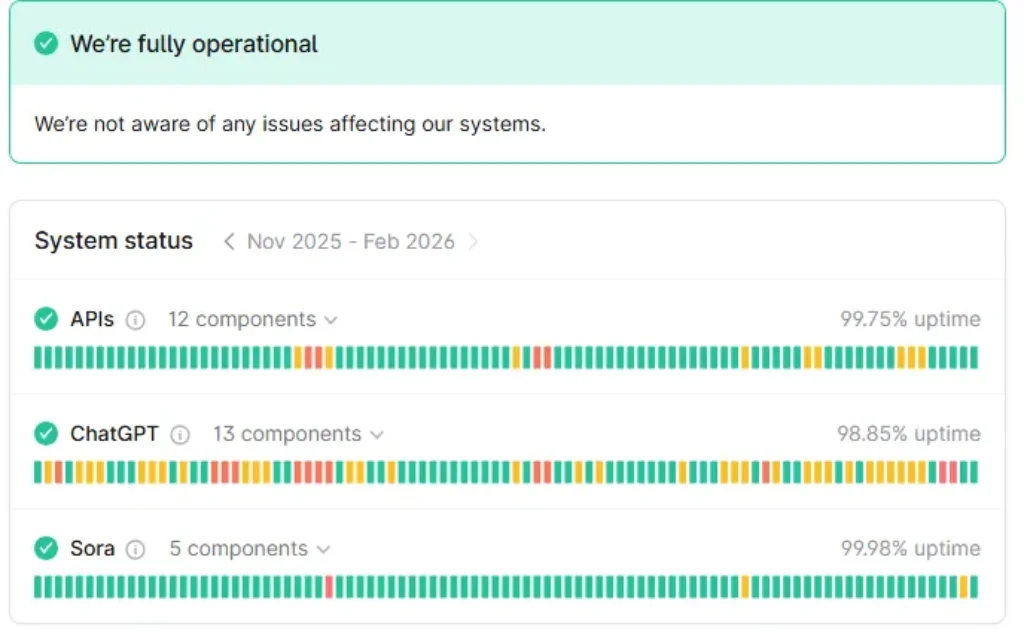
Check OpenAI Server Status
Sometimes the issue isn’t on your side.
Visit OpenAI’s status page and check for:
- GPT-4 outages
- Payment system delays
- Platform maintenance
If there’s an outage, waiting is the only solution.
Try Another Browser or Device
If the issue persists:
- Try Safari instead of Chrome
- Try Edge instead of Firefox
- Try your phone instead of the desktop.
If it works on another device, the problem is likely browser-related.
Contact OpenAI Support (If Billing Failed)
If:
- You were charged
- GPT-4 is unavailable
- The subscription shows inactive
Then contact support directly.
Provide:
- Screenshot of payment confirmation
- Date of charge
- Email used for subscription
Support usually responds within a few business days.
Read also: The Ultimate Guide to Cheap GPU Cloud How to Save 40-70% on AI Training Costs in 2026
How to Prevent ChatGPT Plus Problems
To avoid future issues:
- Use one primary device for subscription
- Avoid switching VPN locations frequently
- Keep your browser updated
- Don’t use multiple accounts on the same device
Consistency reduces access conflicts.
When It’s NOT a Technical Problem
Sometimes users think Plus isn’t working when:
- GPT-4 message limit is reached
- A temporary usage cap applies
- The model auto-switches during peak hours
Check your usage limits before assuming something is broken.
Final Thoughts
Most ChatGPT Plus issues are temporary.
Before panicking:
✔ Refresh
✔ Log out
✔ Clear cache
✔ Disable VPN
In 90% of cases, one of these fixes solves the problem.
And if not? Support can help—just make sure your billing information matches your account email.
Improved Conclusion (Stronger, More Human, More Authoritative)
Final Thoughts: Don’t Panic It’s Usually Fixable
If ChatGPT Plus isn’t working, it almost never means your subscription is lost.
In most cases, the issue is
- A session refresh problem
- A browser cache conflict
- A VPN mismatch
- Or a temporary platform delay
I’ve personally seen that logging out and back in solves the issue more often than anything else. It sounds basic, but it works.
The key is to troubleshoot calmly and systematically.
And what if the problem truly is billing-related? OpenAI support can restore access once verification is complete.
Before you cancel your subscription or assume something is broken permanently — try the fixes above first.
Most users regain GPT-4 access within minutes.
❓ Frequently Asked Questions
Why was I charged for ChatGPT Plus but still can’t access GPT-4?
This usually happens due to a short payment processing delay or a session refresh issue.
Log out and log back in first. If access is still unavailable after 24 hours, contact support with proof of payment.
How long does ChatGPT Plus activation take?
In most cases, activation is instant. However, some banks may take a few minutes to confirm the transaction.
Rarely, it can take up to 24 hours.
Does using a VPN affect ChatGPT Plus?
Yes, it can. If your IP address changes frequently, the system may temporarily restrict access. Try disabling your VPN and refreshing the page.
What should I do if GPT-4 disappears from the model selector?
First, confirm your subscription is active under Settings → My Plan. Then log out and back in. Clearing your browser cache can also restore the model option.
Is there a usage limit on ChatGPT Plus?
Yes. During peak times, GPT-4 usage may have temporary limits. If you hit the cap, you may need to wait before continuing.
Can I use ChatGPT Plus on multiple devices?
Yes, but it’s best to stay logged into one primary device to avoid session conflicts.