


Let me tell you something, migrating a website used to be the kind of task that made grown developers weep into their keyboards at 3 AM.
I’ve been there clutching a backup file like it’s the last lifeboat on the Titanic, praying nothing breaks when you hit that transfer button.
Table of Contents
But here’s the thing: those days? They’re pretty much over.
Hostinger’s rolled out something called Kodee AI, and honestly, it’s like having a really smart friend who actually enjoys doing the technical stuff you’d rather avoid.
Think of it as your personal migration assistant that doesn’t judge you for not knowing what FTP stands for (it’s File Transfer Protocol, by the way, but who’s counting?).
Hostinger Kodee AI Website Migration
| Site Type | Kodee AI Migration Time | Traditional Migration Time |
| Small Blog (<1GB) | 15–30 minutes | 24–48 hours |
| Medium WordPress (1-5GB) | 1–3 hours | 24–48 hours |
| Large/WooCommerce (5-10GB+) | 3–6 hours | 48–72 hours |
| Complex Custom Configs | 6+ hours | 48–96 hours |
What Exactly Is This Kodee Thing and Why Should You Care?
Alright, let’s break this down without the tech jargon that makes your eyes glaze over.
Hostinger Kodee AI is essentially an AI-powered assistant built right into your Hostinger control panel (they call it hPanel).
This isn’t just some chatbot that tells you, to have you tried turning it off and on again? We’re talking about an AI agent that can actually do stuff like physically migrate your entire website from your old hosting provider to Hostinger.
And get this, Kodee can handle over 350 different tasks. We’re talking website migration, performance optimization, backup creation, fixing broken stuff after you move, and even managing your WordPress content.
It’s like having a junior web developer on standby 24/7, except this one doesn’t need coffee breaks or vacation days.
The real magic?
You can literally ask Kodee to migrate your site. No forms. No waiting three business days for a support ticket.
No panic attacks about whether you backed up your database correctly.
You chat with Kodee, it handles the heavy lifting, and you make yourself a sandwich.
Can Kodee Actually Migrate Your WordPress Site Automatically?
Short answer: Yes, absolutely.
Longer answer: Yes, and it’s almost embarrassingly easy.
Here’s what happens you’ve got a WordPress site currently living at, say, some budget host that keeps going down every time someone sneezes. You sign up for Hostinger, open up your hPanel dashboard, and Kodee is waiting for you like an eager puppy.
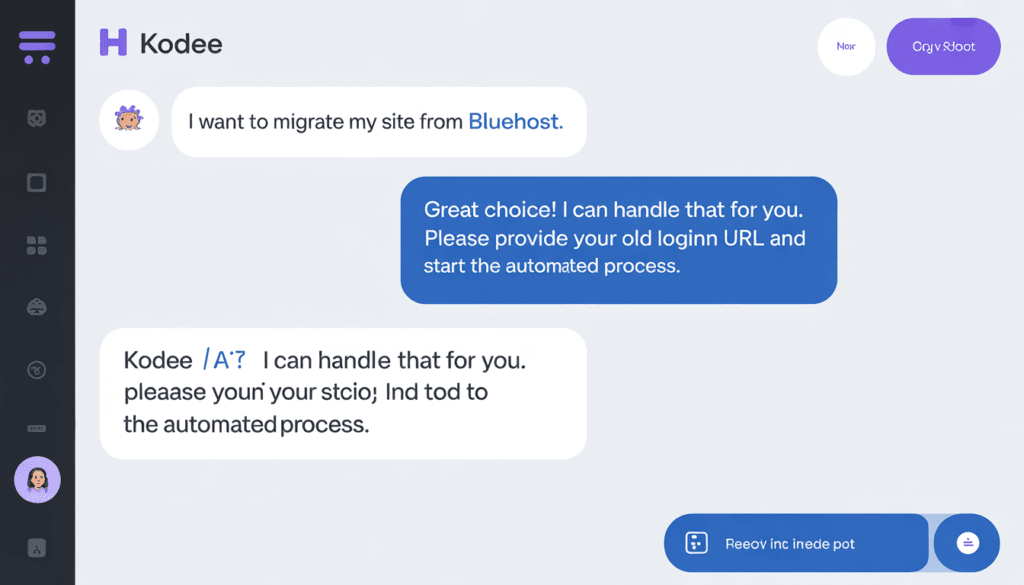
You tell Kodee something like, Hey, I need to move my WordPress site from OldHostingCompany.com. Kodee asks you for the necessary details (your old hosting login credentials, basically), and then it gets to work.
The AI handles the file transfer, database migration, DNS configuration guidance, all the stuff that normally requires you to follow a 47-step tutorial written by someone who assumes you already have a computer science degree.
For WordPress specifically, Kodee integrates beautifully with Hostinger’s managed WordPress hosting plans.
It knows WordPress inside and out, so it can handle everything from simple blogs to complex WooCommerce stores without breaking a sweat.
Do I Still Need to Fill Out That Migration Form?
This is where things get interesting.
Hostinger offers a traditional free website migration service where you fill out a form, submit your old hosting details, and their human migration experts handle everything for you.
It’s solid, reliable, and completely free with eligible hosting plans.
But with Kodee AI, you’ve got options.
For straightforward WordPress migrations, Kodee can often handle the entire process through the AI chat interface without you touching a single form. You’re basically having a conversation instead of filling out paperwork.
It’s faster, more interactive, and honestly kind of fun which is not a phrase I ever thought I’d use about website migration.
However, for more complex sites (we’re talking massive databases, custom configurations, weird server setups), the traditional migration service with human experts backing everything up might still be the safer bet.
The good news you can choose, and if Kodee encounters something funky during migration, it’ll tell you and can even help you connect with those human experts.
What Information Does Hostinger Actually Need?
Let’s talk logistics for a second because I know you’re wondering what you’ll need to hand over.
For an AI-assisted migration with Kodee, you’ll typically need:
- Your old hosting provider’s login credentials (cPanel or hosting panel access)
- Your website’s current URL
- FTP/SFTP credentials (sometimes Kodee can work without these)
- Database access details (if doing a manual-assisted migration)
Now, I hear you asking wait, I need to give my passwords to some AI? Fair question.
We’ll get to security in a bit, but the short version is that Hostinger takes this seriously.
Your credentials are encrypted, used only for the migration, and then discarded.
Kodee doesn’t store your passwords in some creepy database somewhere.
For the traditional free migration service, you’ll fill out a form with similar information plus maybe some specific preferences about what to migrate and when.
The beauty of the AI approach is that Kodee can often extract what it needs with minimal input from you.
It’s smart enough to figure out your site structure and requirements just by accessing your hosting environment.
How Long Does This Actually Take?
Here’s where Kodee really shines.
Traditional website migrations can take anywhere from 24 to 72 hours through the standard Hostinger migration service.
That’s not bad it’s actually pretty standard industry-wide.
You submit your request, the team queues it up, and they get to it based on complexity and current workload.
With Kodee AI, though we’re often talking minutes to a few hours for most standard WordPress sites.
I’ve seen simple WordPress blogs migrate in under 30 minutes.
medium-sized site with a few thousand posts and some custom plugins maybe 1-3 hours.
massive WooCommerce store with thousands of products and customer data?
That might stretch to 4-6 hours, but still that’s same-day migration we’re talking about.
The actual speed depends on several factors:
The AI keeps you updated throughout the process, so you’re not sitting there refreshing your browser like a maniac, wondering if something broke.
| Site Type | Kodee AI Migration | Traditional Migration Service |
| Small blog (under 1GB) | 15-30 minutes | 24-48 hours |
| Medium WordPress site (1-5GB) | 1-3 hours | 24-48 hours |
| Large site or WooCommerce (5-10GB+) | 3-6 hours | 48-72 hours |
| Complex custom configurations | 6+ hours (may need human backup) | 48-96 hours |
The Big Scary Questio What About Downtime?
Okay, real talk. This is what keeps website owners up at night the fear that during migration, their site goes dark and they lose visitors, sales, or their mind.
Here’s the deal with Hostinger’s migration approach (whether AI-assisted or traditional):
Your existing site stays live on your old host during the entire migration process.
Kodee (or the migration team) creates a complete copy of your site on Hostinger’s servers without touching your live site.
Think of it like creating a parallel universe version of your website.
Once everything’s copied and tested on Hostinger’s side, then you point your domain’s DNS to the new location.
There’s typically a short propagation period (anywhere from a few minutes to 48 hours, though usually it’s quick) where some visitors might see the old site and some might see the new one as DNS updates spread across the internet.
So yes, technically there can be a brief transitional period, but it’s not downtime where your site is completely unreachable.
It’s more like a smooth handoff.
Pro tip from someone who’s done this too many times schedule your DNS change during your lowest-traffic hours.
For most sites, that’s late night or early morning.
Your WooCommerce store doing most of its sales at 2 PM? Don’t switch DNS at 1:55 PM. Wait until 2 AM when everyone’s asleep.
Kodee can actually help you plan this transition and even recommend the best time based on your site’s traffic patterns if you’ve connected analytics.
What Happens After Migration?
This is where Kodee goes from pretty cool to okay, I’m genuinely impressed.
Post-migration is when most DIY migrations fall apart.
You move everything over, the site looks fine, but then you discover broken internal links, missing images, plugins that don’t play nice with the new server, or performance issues you didn’t have before.
Kodee can fix a lot of this automatically.
After your migration completes, Kodee runs diagnostic checks. It looks for:
- Broken internal links and can fix them
- Missing or improperly linked images
- Plugin compatibility issues
- Database optimization opportunities
- Performance bottlenecks
You can literally just ask Kodee, Hey, are there any broken links on my site? and it’ll scan, find them, and offer to fix them.
Same with images, redirects, and other common post-migration issues.
It’s also brilliant for optimization. Kodee can implement caching, compress images, clean up your database, and make performance tweaks that help your newly migrated site run even better than it did on your old host.
Is Hostinger’s Migration Service Really Free?
I’m naturally suspicious of anything labeled “free” on the internet, so I get it if you’re skeptical.
Here’s the honest truth.
Yes, Hostinger’s website migration is genuinely free with their eligible hosting plans. No hidden fees. No surprise, that’ll be $99 invoices showing up.
The catch if you want to call it that is that you need to be an active Hostinger customer with a qualifying hosting plan.
You can’t just sign up for a $2.99/month trial and expect unlimited enterprise-level migrations. But for real customers on their WordPress Hosting, Cloud Hosting, or even shared web hosting plans, migration is included at no extra cost.
Number of sites This varies by plan:
- Basic shared hosting plans: Usually one free migration
- Premium and Business plans: Multiple or unlimited migrations depending on the tier
- Cloud and managed WordPress plans: Typically unlimited migrations
The AI-assisted Kodee approach doesn’t change the pricing structure it’s still free within your plan’s limits. You’re just getting faster, more interactive service.
If you need to migrate multiple sites and your plan only includes one migration, you can either upgrade your plan (which might make sense anyway if you’re managing multiple sites) or use Kodee to help with the technical steps for additional sites yourself.
The AI can guide you through manual migration processes even if you don’t have “official” migration credits left.
Can Kodee Handle Ecommerce and WooCommerce Without Destroying Everything?
This is crucial if you’re running an online store. You can’t afford to lose product listings, customer orders, or transaction history during a migration. That’s not just a technical problem that’s a my business is on fire problem.
Good news: Kodee and Hostinger’s migration service are absolutely equipped to handle WooCommerce migrations.
Here’s what gets migrated for ecommerce sites:
- All product listings with variations, pricing, and images
- Customer accounts and order history
- Payment gateway configurations (though you may need to re-verify some API keys)
- Shipping settings and tax rules
- WooCommerce analytics and reports
- Third-party plugin data (depending on the plugin)
Kodee is particularly smart about WooCommerce because it’s so common the AI understands the database structure, knows which tables contain critical order data, and handles the migration with extra care.
Important note: After migration, you’ll want to verify your payment gateway settings and test a transaction in sandbox/test mode before going fully live.
This isn’t because anything broke during migration it’s because some payment processors require re-verification when you change servers or IP addresses.
Kodee can remind you about this and even help you run those tests.
If you’re running a high-volume store, you might want to use the traditional migration service backed by human experts just for extra peace of mind. But honestly, Kodee handles most WooCommerce migrations without breaking a sweat.
Does Kodee Only Work with Hostinger’s Website Builder or What?
Short answer: Kodee works with way more than just their website builder.
Kodee integrates across Hostinger’s ecosystem:
- WordPress sites (self-hosted, not WordPress.com)
- cPanel-based sites that you migrate to Hostinger
- Hostinger’s AI Website Builder sites
- Custom HTML/PHP sites
- WooCommerce and ecommerce platforms
- Hostinger Horizons (their no-code app platform)
The AI is built into hPanel, which is Hostinger’s custom control panel that replaces cPanel on their platform.
So whether you’re migrating a WordPress blog, a custom PHP application, or rebuilding something with their Website Builder after migration, Kodee can assist.
Where Kodee is most powerful is with WordPress because that’s where it has the deepest integrations.
It can directly manage WordPress content, create posts, optimize performance, handle backups, and do all sorts of WordPress-specific tasks beyond just migration.
But for other platforms and site types, Kodee is still incredibly useful for the migration itself, plus general hosting tasks, performance monitoring, and troubleshooting.
How Secure Is Handing Over Your Login Credentials?
Let’s address the elephant in the room because this is a legitimate concern you’re about to give access to potentially years of work your entire website and all its data.
Hostinger takes security seriously (as they should, being a major hosting provider).
Here’s how they handle your credentials:
- Encryption: All data transmission is encrypted using industry-standard protocols
- Limited access: Your credentials are used only for the migration process
- Automatic deletion: Once migration completes, your old hosting credentials are purged from Hostinger’s systems
- No storage: Kodee doesn’t permanently store your passwords in its memory banks
- Compliance: Hostinger maintains various security certifications and complies with data protection regulations
That said, you can take extra precautions:
- Create temporary access on your old hosting provider specifically for migration, then delete it afterward
- Change passwords on your old host after migration completes
- Use strong, unique passwords during the migration process
- Enable two-factor authentication where available
- Monitor your old hosting account during and after migration for any suspicious activity
If you’re particularly paranoid (and hey, that’s not always a bad thing), you could also do a backup-based migration where you create and download your own backups, then upload them to Hostinger without giving access to your old host. Kodee can guide you through this approach too, though it’s a bit more hands-on.
What Should You Actually Test After Migration?
Okay, your site is migrated. Kodee says everything looks good. Now what?
Don’t just assume everything’s perfect take 30 minutes to run through this checklist:
Functionality checks:
- Log into your WordPress admin panel
- Test forms (contact forms, newsletter signups, etc.)
- Verify image loading across multiple pages
- Check that videos and embedded content display correctly
- Test your search functionality
- Click through your navigation menu items
For WooCommerce stores:
- Browse product pages and categories
- Add items to cart and proceed through checkout (use test mode!)
- Verify payment gateway connections
- Check shipping calculation accuracy
- Test customer account login and registration
- Review order history display
Technical checks:
- Run your site through Google PageSpeed Insights
- Check for broken links using Kodee or a tool like Screaming Frog
- Verify SSL certificate is active (your site should show HTTPS)
- Test mobile responsiveness
- Check that all plugins are active and updated
- Verify any third-party integrations (analytics, email marketing, etc.)
Email testing:
- Send test emails from your site
- Verify email notifications are working (form submissions, order confirmations, etc.)
- Check that your email addresses are still routing correctly
Kodee can actually help with most of this testing.
You can ask it to scan for broken links, run performance diagnostics, verify plugin status, and check for common post-migration issues.
It’s like having a QA tester on demand.
How to Use Hostinger Kodee for Migration
Alright, let’s walk through the actual process because I know some of you just skipped to this section (no judgment).
Before you start:
- Sign up for a Hostinger hosting plan (WordPress Hosting or Web Hosting are good starting points)
- Have your old hosting login credentials ready
- Make sure you have a backup of your current site (just in case paranoia is healthy)
The actual migration process:
Step 1: Log into your Hostinger account and access hPanel (your control panel)
Step 2: Look for Kodee it’s usually visible as a chat icon in the bottom corner or in your main dashboard
Step 3: Open Kodee and type something like: I want to migrate my WordPress site from [your old host]
Step 4: Kodee will ask you for necessary details:
- Your old hosting provider’s name
- Login credentials (cPanel username and password, or hosting panel access)
- Your current website URL
- Any specific preferences (like migration timing)
Step 5: Confirm the details and let Kodee start the migration process
Step 6: Monitor progress through the Kodee interface it’ll keep you updated
Step 7: Once complete, Kodee will prompt you to verify the site and test functionality
Step 8: Update your domain’s DNS settings to point to Hostinger (Kodee will provide specific nameservers or can even guide you through this)
Step 9: Wait for DNS propagation (usually 15 minutes to 24 hours)
Step 10: Run through your testing checklist (see previous section)
The whole conversation with Kodee is natural you’re not filling out forms or checking boxes.
You’re literally just telling an AI what you want to do, and it figures out the rest.
🚀 Ready to Move Your Site Without the Headache?
Migration is included at no extra cost for most plans. If you’re ready to make the switch and want to maximize your savings, check out our guide on how to get Hostinger at 80% off plus a free domain to start your migration journey with the best possible deal.
What About Internal Migrations Between Hostinger Plans?
Here’s a scenario you start with a basic Hostinger plan, your site grows, and now you need to upgrade to Cloud Hosting or move to a different Hostinger account. What then?
Hostinger’s internal migration tools make this surprisingly painless. You can move sites:
- Between different hosting plans on the same account
- From one Hostinger account to another
- Between different domain names while staying on Hostinger
Kodee can assist with these internal migrations too.
Since everything stays within Hostinger’s infrastructure, it’s usually even faster than external migrations sometimes just minutes.
The process is similar: tell Kodee what you want to move and where, confirm the details, and it handles the transfer.
Your data doesn’t have to leave Hostinger’s network, which speeds things up considerably.
This is particularly useful for:
- Web developers managing multiple client sites
- Agencies reorganizing their hosting structure
- Business owners separating different projects into different accounts
- Anyone upgrading from shared hosting to VPS or cloud solutions
Kodee Beyond Migration Your Long-Term WordPress Assistant
Here’s something worth mentioning Kodee doesn’t just disappear after your migration is done.
It sticks around as a permanent part of your Hostinger experience.
You can use Kodee for ongoing tasks like:
- Content creation:Write a blog post about [topic]
- Performance optimization: Speed up my website
- WordPress management: Update all my plugins
- Store management: Add five new products to my WooCommerce store
- Analytics and reports: Show me my site’s performance over the last month”
- Troubleshooting: Why is my contact form not working?
- SEO improvements: Help me optimize this page for [keyword]
- Backup creation: Create a full site backup right now
It’s like having a junior developer and content assistant combined into one AI-powered tool.
And it’s included with your Hostinger hosting no extra subscription needed.
For WordPress site owners especially, Kodee becomes this incredibly useful day-to-day helper that goes way beyond just getting your site moved over initially.
Other Hostinger Features That Make Migration Worth It
While we’re talking about migration, let’s discuss why people are moving to Hostinger in the first place (besides Kodee):
LiteSpeed servers: Significantly faster than traditional Apache servers, which means better performance for WordPress sites right out of the gate.
Free SSL certificates: Automatic SSL installation and renewal no extra cost, no hassle.
Daily backups: Automatic backups so you’re never worried about data loss.
Cloudflare integration: Built-in CDN and security features for faster global load times.
Staging environments: Test changes before pushing them live (perfect for post-migration optimization).
24/7 support: Human agents backing up Kodee when you need deeper technical help.
The combination of AI-assisted management (Kodee) and solid hosting infrastructure makes Hostinger particularly appealing if you’re tired of slower, outdated hosting providers or want more hands-on help without paying for expensive managed hosting.
| Feature | Hostinger (Kodee AI) | Bluehost | SiteGround | GoDaddy |
| Migration Cost | FREE (Unlimited) | $149 (Expert service) | Free (Plugin only) | Free (Basic tool) |
| Migration Method | AI Agent (Kodee) | Manual / Plugin | Manual Plugin | Guided Manual |
| Intro Price | $1.79 – $2.49/mo | $2.95/mo | $2.99/mo | $6.99/mo |
| Renewal Rate | Medium | High | Very High | High |
| Control Panel | hPanel (Modern/AI) | cPanel (Traditional) | SiteTools (Custom) | cPanel (Modified) |
| Top AI Feature | Kodee (Technical Agent) | AI Website Builder | AI Security/Content | AI Design (Airo) |
🚀 Ready to Move Your Site Without the Headache?
Migration is included at no extra cost for most plans. If you’re ready to make the switch and want to maximize your savings, check out our guide on how to get Hostinger at 80% off plus a free domain to start your migration journey with the best possible deal.
Who Should (and Shouldn’t) Use Kodee AI Migration?
Perfect candidates for Kodee AI migration:
- WordPress site owners who want fast, automated migration
- Small business owners without technical teams
- Bloggers migrating from shared hosting providers
- WooCommerce store owners looking for safe ecommerce migration
- Freelancers and agencies moving multiple client sites
- Anyone who prefers conversational interfaces over technical forms
- International users who want simple, clear guidance
Might want the traditional service instead:
- Enterprise sites with complex server configurations
- Sites with unusual custom setups or legacy code
- Anyone uncomfortable with AI handling their credentials
- Sites requiring specific migration timing and coordination
- Projects where extra human oversight provides peace of mind
There’s no wrong choice both options are free within your hosting plan.
It’s really about your comfort level and site complexity.
Common Migration Mistakes Kodee Helps You Avoid
Let me share some horror stories I’ve witnessed (and learned from):
Mistake #1: Not testing thoroughly People migrate, see the homepage load, and call it done. Then three weeks later discover half their blog posts have broken images. Kodee prompts you to run comprehensive checks.
Mistake #2: Forgetting about email You migrate your site, forget to set up email forwarding or hosting, and suddenly you’re not receiving customer inquiries. Kodee can remind you about email configuration.
Mistake #3: Poor DNS timing Changing DNS during peak traffic hours causes chaos. Kodee can analyze your traffic patterns and recommend optimal switching times.
Mistake #4: Not keeping a backup Things can go wrong (rarely, but it happens). Kodee automatically creates migration backups and reminds you to keep your own safety copy.
Mistake #5: Ignoring plugin compatibility Some plugins have licensing or server-specific configurations. Kodee checks for potential issues and alerts you before problems arise.
The Bottom Line Is Hostinger Kodee AI Migration Worth It?
Look, I’ll be straight with you. Migration is never going to be fun. It’s one of those necessary evils when you outgrow your current host or need better performance and features.
But Hostinger’s Kodee AI makes it about as painless as it can possibly be.
You get:
- Free migration (no hidden costs)
- Fast turnaround (hours instead of days for most sites)
- AI-assisted process (conversational, not technical)
- Minimal downtime risk (your site stays live during migration)
- Post-migration support (Kodee sticks around to help optimize and fix issues)
- Multiple migration options (AI-assisted or traditional service, your choice)
For WordPress sites, WooCommerce stores, and standard websites, Kodee handles migrations impressively well. It’s smart enough to manage the technical complexity while keeping the interface simple enough that you don’t need to be a developer to use it.
Is it perfect?
No. Really complex enterprise sites or unusual custom setups might still need that human expert touch. And if you’re deeply suspicious of AI or prefer talking to humans, the traditional migration service is still available.
But for the vast majority of website owners bloggers, small businesses, freelancers, even mid-sized ecommerce stores Kodee AI migration is genuinely impressive technology that takes a historically stressful process and makes it something you can knock out over lunch.
Ready to Make the Move?
If you’ve been putting off that hosting migration because it seemed too complicated or risky, Kodee might be exactly what you’ve been waiting for.
Head over to Hostinger’s website, grab a hosting plan that fits your needs (they start crazy affordable), and give Kodee a shot. The migration itself is free with your plan, so you’re really just investing in better hosting infrastructure.
And hey worst case scenario, you’ve got human support backing everything up if something goes sideways best case
You migrate your site in a couple of hours, have it running faster than before, and wonder why you didn’t do this six months ago.
Your website deserves a good home. Maybe it’s time to let Kodee help you find it.
🚀 Ready to Move Your Site Without the Headache?
Migration is included at no extra cost for most plans. If you’re ready to make the switch and want to maximize your savings, check out our guide on how to get Hostinger at 80% off plus a free domain to start your migration journey with the best possible deal.