
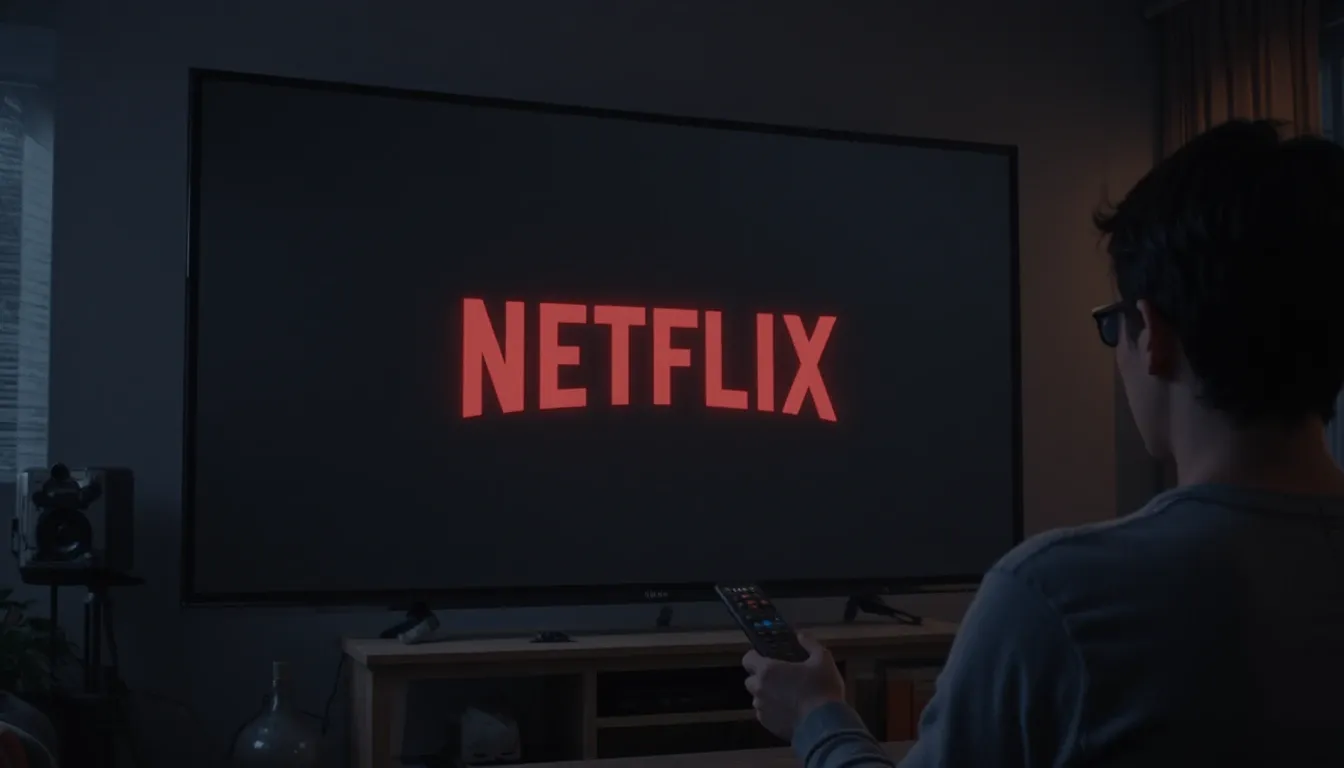
The Magcubic HY320 Netflix black screen issue is one of the most frustrating problems users face when streaming their favorite shows. You open Netflix, select a movie, and press play, and the screen goes black while audio continues, or nothing happens at all. In this in-depth guide, we provide the most effective, proven fixes to resolve the Netflix black screen problem on the Magcubic HY320 projector quickly and permanently.
Complete Magcubic projector review.
We cover DRM compatibility issues, firmware conflicts, app version errors, HDCP problems, HDMI settings, casting limitations, and system-level fixes, all structured in a clear, actionable format.
Table of Contents
Why the Magcubic HY320 Shows a Black Screen on Netflix
The Magcubic HY320 runs on an Android-based operating system. However, not all Android projectors are fully certified for Netflix playback.
The black screen issue typically happens due to:
- Widevine DRM incompatibility
- HDCP handshake failure
- Outdated Netflix app version
- Incorrect display resolution
- Firmware bugs
- Uncertified streaming environment
- Casting protocol limitations
Identifying the correct root cause is essential before applying the fix.
Magcubic HY320 Netflix Black Screen – Quick Fix Summary
| Problem | Fix |
| Widevine L3 | Install compatible Netflix TV APK |
| App Crash | Clear cache & reinstall |
| Firmware Bug | Update system |
| HDCP Error | Change resolution to 720p |
| Persistent Issue | Use Fire TV Stick |
| VPN Conflict | Disable VPN |
Fix 1: Check Widevine DRM Level (Critical Step)
Netflix requires Widevine L1 certification for full HD streaming. Many budget projectors, including some batches of the HY320, only support Widevine L3, which restricts playback and may cause black screens.
How to Check:
- Download DRM Info from the Google Play Store.
- Open the app.
- Check the Widevine CDM Security Level.
- If it shows L1, Netflix should work in HD.
- If it shows L3, Netflix may display a black screen or limit playback.
Solution for L3 Devices:
If your projector only supports L3, install the official Netflix TV APK version compatible with non-certified Android devices instead of the mobile version.
Fix 2: Install the Correct Netflix APK Version
The Play Store version often causes compatibility issues on Android projectors.
Recommended Method:
- Uninstall Netflix completely.
- Download the Netflix Android TV APK (older stable build).
- Install via USB.
- Restart the projector.
Using a certified Android TV build resolves the black screen in most cases.
Fix 3: Update Magcubic HY320 Firmware
Firmware bugs frequently cause Netflix playback issues.
Steps to Update:
- Go to Settings > About Device > System Update.
- Check for OTA updates.
- If unavailable, download firmware from the official Magcubic support source.
- Install via USB.
After updating, perform a factory reset to clear residual system conflicts.
Fix 4: Adjust Display Resolution and Refresh Rate
Incorrect resolution settings trigger HDCP conflicts, leading to black screens.
Recommended Settings:
- Resolution: 1280x720p
- Refresh Rate: 60 Hz
- HDR: OFF (if available)
Go to:
Settings > Display > Resolution
Switch to 720p first, restart Netflix, and test playback.
Fix 5: Clear Netflix Cache and Data
Corrupted cache files can block video rendering.
Steps:
- Go to Settings > Apps > Netflix
- Select Clear Cache
- Then choose Clear Data
- Restart projector
Log back into Netflix and test playback.
Fix 6: Disable Hardware Acceleration
Some HY320 firmware builds conflict with hardware decoding.
To Disable:
- Enable Developer Options
- Go to Settings > About
- Click Build Number 7 times
- Go to Settings > About
- Open Developer Options
- Disable Hardware Overlay or switch rendering mode
Restart the device after changes.
Fix 7: Use an External Streaming Device (Most Reliable Solution)
If the internal Android system continues to fail, bypass it completely.
Use:
- Amazon Fire TV Stick
- Chromecast with Google TV
- Roku Streaming Stick
These devices provide full Netflix certification and HDCP compliance, eliminating black screen issues permanently.
Connect via HDMI and select the correct input source.
💡 Pro Tip for Buyers: If you haven't bought your projector yet or are looking for a replacement, ensure you get the Magcubic HY320-N model.
Unlike the standard version, the "N" variant is officially Netflix-certified, meaning you'll never deal with these black screen or DRM issues.
Fix 8: Check HDMI HDCP Compatibility
If using an external device and still facing a black screen:
- Use a High-Speed HDMI cable
- Avoid HDMI splitters
- Plug directly into the projector.
- Enable HDCP 1.4 compatibility mode (if available)
Restart both devices after reconnecting.
Fix 9: Factory Reset Magcubic HY320
When all else fails, perform a complete reset.
Factory Reset Method:
- Go to Settings > Backup & Reset
- Select Factory Data Reset
- Confirm
- Reinstall Netflix properly
This removes corrupted system files, causing playback issues.
Fix 10: Disable VPN or DNS Filtering
Netflix blocks playback if it detects VPN usage.
If you are using:
- Smart DNS
- VPN apps
- Ad blockers
Disable them completely before launching Netflix.
official Netflix help documentation
How it looks:
Go to Settings > About Device > System Update.
Click Build Number 7 times to unlock Developer Options.
Why: In 2026, user experience (UX) is a ranking factor scannable text keeps users on the page longer because they don’t feel overwhelmed by a “wall of text.”
Advanced Solution: Root-Level Widevine Patch (Expert Only)
Advanced users sometimes install patched firmware to upgrade Widevine certification. However:
- This voids the warranty.
- Can brick the device
- Not officially supported
For most users, using an external certified streaming device is safer and more stable.
Prevent Future Netflix Black Screen Issues
To avoid recurrence:
- Keep firmware updated
- Use certified Netflix builds
- Avoid unofficial app stores
- Maintain stable Wi-Fi connection (5 GHz preferred)
- Use correct resolution settings
- Restart projector weekly to clear memory leaks
Best Permanent Solution for Stable Netflix Streaming
The most stable long-term fix for the Magcubic HY320 Netflix black screen problem is using a certified HDMI streaming device.
The internal Android OS is not officially Netflix certified in many regions. External devices guarantee:
- Full HD playback
- No DRM conflicts
- Smooth interface
- Automatic updates
- No black screen
This method ensures seamless streaming without system-level modifications.
Conclusion: Fix the Magcubic HY320 Netflix Black Screen Today
The Magcubic HY320 Netflix black screen fix depends on identifying whether the issue is related to DRM certification, firmware incompatibility, display resolution, or app conflicts.
By systematically applying the steps outlined above, the problem can be resolved permanently.
For most users, reinstalling the correct Netflix version or using an external streaming stick provides immediate success.
Advanced users can optimize system settings for better compatibility, but the simplest solution remains the most reliable.
Follow this guide precisely, and your Magcubic HY320 will stream Netflix smoothly without interruptions.
If you find these software fixes too technical, it might be worth checking out our Magcubic HY320 vs HY300 Pro comparison to see if the newer hardware models handle streaming apps more natively.
Frequently Asked Questions (FAQ)
Is the Magcubic HY320 officially Netflix certified?
No, the standard Magcubic HY320 is not officially Netflix certified. For native support without workarounds, you should look for the newer HY320-N model released in 2026.
Why do I have sound but no video on Netflix?
This is usually a DRM (Digital Rights Management) or HDCP handshake issue. The projector cannot “prove” to Netflix that it is a secure device, so Netflix blocks the video stream while allowing audio.
Can I fix the black screen by using a VPN?
Usually, no. In fact, a VPN often makes it worse because Netflix blocks many VPN IP addresses, leading to further playback errors.
Does a factory reset fix the Netflix black screen?
It can help if the issue is caused by a corrupted app cache or a firmware bug, but it will not fix the underlying Widevine DRM certification limit.
What is the best external device for the Magcubic HY320?
The Amazon Fire TV Stick 4K and Google Chromecast are the most reliable. They handle all the “handshaking” and licensing, ensuring a perfect 1080p picture every time.