You may be unable to copy text from a PDF because the words are stored as a picture, not as usable text. But that is only one possibility: a PDF can contain text and still have character-mapping problems, copying restrictions, or content that a particular reader cannot handle.
Selecting, copying, searching, and extracting text are related but different operations. Selection identifies a region in a viewer; copying transfers content; search looks for a match; extraction collects text for reuse. A failure in one is a clue, not proof of how the whole PDF is built.
Start with a few simple checks
Try a short passage before working with the entire document. Check more than one page, especially if the file combines reports, scans, or attachments. These observations narrow the possibilities; they do not certify the file.
| Check | May indicate | Does not prove / next step |
|---|---|---|
| Password needed to open? | Access protection. | Says nothing about stored text. Obtain an authorized usable copy. |
| Individual words selectable? | The reader exposes text in that area. | Failed selection does not prove a scan. Check the selection mode and another passage. |
| Find locates a distinctive word? | That sample is searchable. | A failed search does not prove there is no text layer. Try another word. |
| Short paste matches the page? | That sample copies usefully. | Not a guarantee for every character or page. Compare another sample. |
| Looks like a scan or photo? | The page may contain an image. | An OCR text layer may already accompany it. |
| Pages behave differently? | Mixed content or uneven OCR coverage. | One working page does not validate the rest. |
| Right words, strange order? | Layout reconstruction difficulty. | Not proof of damage. Compare columns and tables with the original. |
| Reader reports copying restrictions? | A permissions issue. | Does not mean text is absent. Ask the sender for a copyable version. |
| Another reader behaves differently? | Viewer behavior contributes. | Neither result reveals the complete structure. Check whether OCR was offered or applied. |
| File will not open or process? | Incomplete or unsupported data is possible. | Not an exact fault diagnosis. Request a fresh copy or export. |
Why a PDF can show words without usable text
Image-only pages and scanned PDFs
A photograph of a booking form contains pixels arranged into letters. You can read those letters, but ordinary text extraction cannot treat the pixels as stored characters. Putting that photograph inside a PDF does not, by itself, add machine-readable text.
Scanning describes how the page was captured, not everything the finished PDF contains. A scanner may also run text recognition. A single document can mix digitally created pages, image-only pages, and scans with recognized text. Even one page can combine selectable paragraphs with a picture of a receipt whose words cannot be copied.
What a searchable text layer means
In practical terms, a text layer is machine-readable text associated with the page. It is not necessarily a layer you can switch on and off in your viewer. A digitally created PDF can contain text from the start, without any recognition step.
OCR can also associate recognized characters with a scanned page while leaving the image visible. Adobe’s explanation of recognizing scanned text describes creating searchable text this way. The appearance alone does not tell you which content is available.
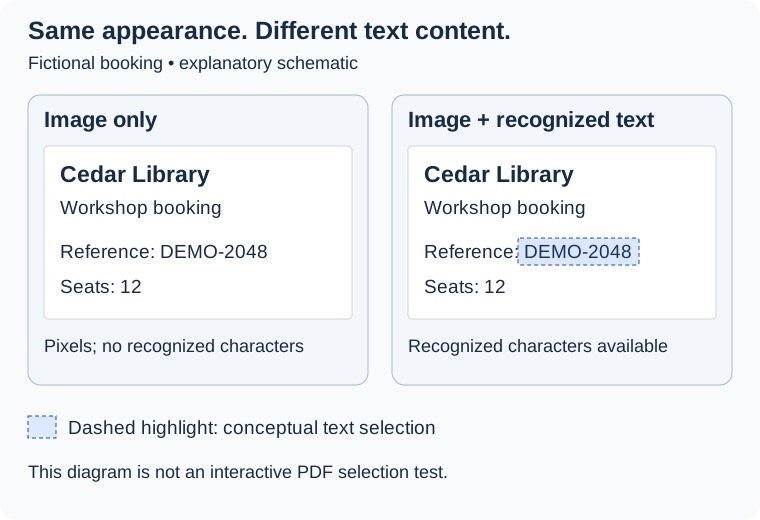
The fictional Cedar Library booking below uses the reference DEMO-2048 in both examples. Only the second example includes recognized text. Its selection-style mark explains the concept; this diagram is not an interactive PDF selection test.
What OCR changes—and what it can get wrong
Optical character recognition interprets writing in an image and produces characters that software can use. Depending on the workflow, it can add searchable text to a PDF or produce a separate text result. Ordinary extraction instead reads text that already exists.
Recognition is not perfect. A name or reference number may look correct in the page image while its recognized version contains a mistake. Compare important names, numbers, and passages with the original. Adobe documents reviewing and correcting recognized text; successful recognition is not a reason to skip review.
When text exists but copying still goes wrong
Characters do not map correctly
A PDF can draw the correct letter shape without giving an extractor enough information to identify the character. Character mappings connect those displayed shapes with machine-readable characters, commonly represented using Unicode. Missing or insufficient mappings can lead to incorrect or missing copied characters.
Adobe’s PDF accessibility overview explains why this mapping matters for extraction. Embedded fonts are not inherently a problem. Strange pasted text is a reason to investigate, not proof of one font defect: an inaccurate OCR layer can also differ from what the page shows. If the problem persists, ask for the original document or a better export.
Columns and tables lose their reading order
PDF text can be positioned to make a page look right. An extractor must turn those positions into a sequence. Some PDFs include logical structure, but its presence and an extractor’s use of it vary. Plain text does not retain all the relationships communicated by the visual arrangement.
Two columns may become alternating fragments. Table cells can lose their row or column relationships, and headers or footers may interrupt the body text. The pypdf extraction documentation discusses these layout difficulties. Correct words in an unexpected sequence do not, by themselves, mean the file is damaged.
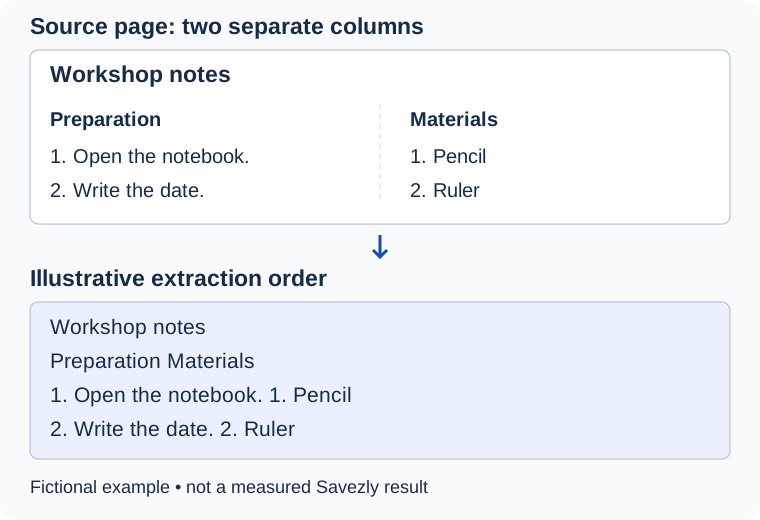
In the fictional workshop example, “Preparation” and “Materials” begin separate columns. The illustrative output joins their headings and then pairs each preparation line with a materials line. It shows a possible ordering problem, not a measured Savezly result.
Passwords and copy restrictions are a separate issue
A password required to open a file controls access. Copy restrictions control an operation after the document is open. Neither tells you whether its pages contain text or images. Adobe’s password security overview distinguishes these mechanisms.
You may therefore be able to read a page while copying is restricted. Check the reader’s document security information rather than assuming OCR is missing. When a restriction prevents your intended use, obtain an authorized usable copy from the sender or source. Text extraction is not a substitute for resolving access or permissions.
Choose the next step for your PDF
| Situation | Next step |
|---|---|
| Usable existing text | Ordinary text extraction, followed by checking the result. |
| Image-only content | An OCR-capable workflow, with review of recognized characters. |
| Wrong or missing characters persist | A better source/export or a workflow able to handle that document. |
| Layout or table relationships matter | The source document or a workflow designed for structured conversion. |
| Copy or access restriction | An authorized usable copy from the sender or source. |
| Unreliable opening or parsing | A fresh complete copy or supported export. |
If the file will not open or process
Incomplete, malformed, or unsupported PDF data can prevent processing. Requesting a fresh download or export is a useful next step, but no route fixes every file. An empty extraction or odd reading order alone does not establish corruption, and repeated conversion is not a reliable diagnosis.
When Savezly PDF to Text fits
If your checks show usable existing text and you need plain-text output, you can extract existing PDF text with Savezly. It creates a separate UTF-8 TXT result without rewriting the source PDF. A scan with an existing usable OCR layer may fit; an image-only scan does not.
Savezly does not perform OCR. It reconstructs ordinary lines and spacing approximately, without semantic table reconstruction or exact page-layout preservation. Mixed documents can yield text from some pages while other pages are identified as having no extractable text. Review the output against the pages you need.
The current limits are one non-empty PDF, 25 MiB input, 100 pages, and 10 MiB encoded text output. Your PDF and extracted text are processed locally in your browser and are not uploaded to Savezly or an external processing service.
When to use another approach
Use an OCR-capable workflow when the words exist only in image content. Savezly does not unlock protected PDFs or bypass copying restrictions, and it has no password-entry workflow. It is not a PDF repair tool. Exact visual layout, structured tables, or damaged and unsupported files require an appropriate alternative or a better source.
Choose by the content you can actually use: existing text calls for extraction, image-only writing calls for recognition, and restrictions or persistent source problems call for a usable copy. Check the result before relying on it.