Cropping changes which part of a PDF page is displayed. It should not be treated as redaction or proof that information outside the crop was deleted. If your goal is to prevent someone from reading sensitive information, changing the page boundary is not enough. Savezly Crop PDF is for visual page cleanup, not confidential-content removal.
What PDF cropping actually changes
The visible page area and the stored content
Think of a crop as a frame around part of a page. A smaller frame shows less of the page, but that does not tell you what happened to the material outside it. In a PDF, the boundary used for this clipping is called the CropBox. It describes the area shown during normal viewing or printing.
The MediaBox describes the page's underlying medium dimensions. These rectangles are separate from the text, images, and drawing instructions that make up the page. Moving a boundary does not itself instruct an application to erase those objects. Adobe's PDF Reference explanation of page boundaries documents this distinction.
What may remain outside the crop
A viewer may stop showing an edge of the page while text or image data from that edge remains in the file. Another operation or application may expose information you thought you had removed. Adobe's crop documentation, for example, describes restoring hidden content by resetting page dimensions.
That does not mean every cropped PDF can always be restored. Files and processing methods differ. The practical rule is narrower: a crop is not evidence of deletion. Nor is file size a useful test of removal. Cropping is not compression, and saving a PDF may change its size without removing the information you intended to exclude.
An example: an account reference outside the crop
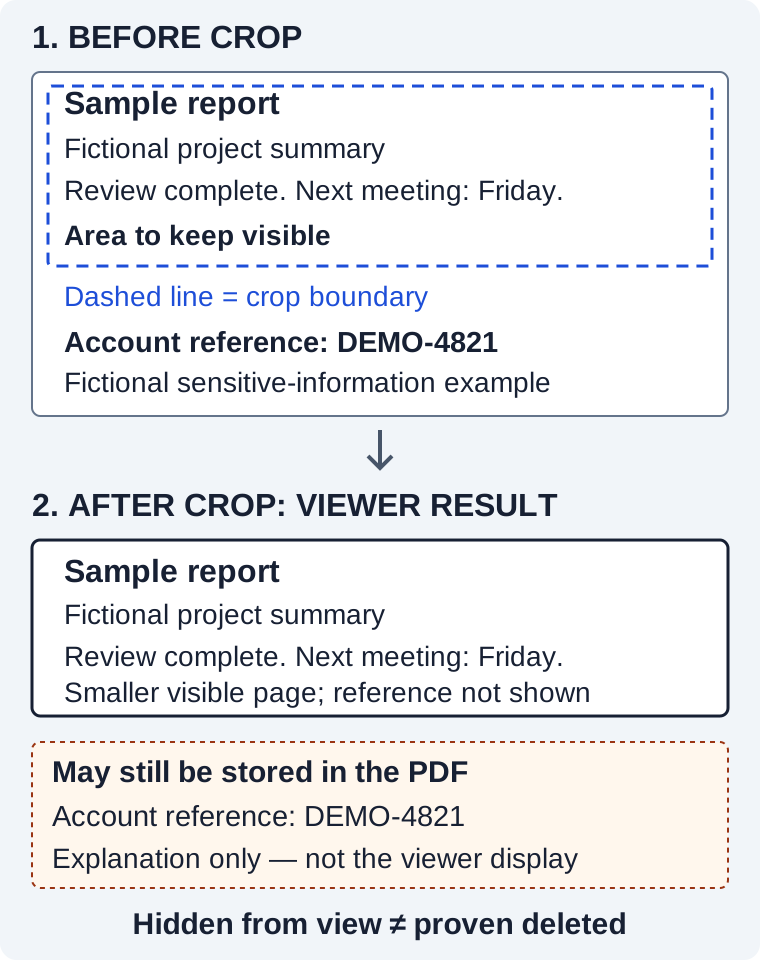
Imagine a fictional report with a summary in the middle and Account reference: DEMO-4821 near the bottom. You want to share the summary without the reference, so you draw a crop boundary above it.
The downloaded page now looks shorter. The reference is absent from the visible area, but it may still exist in the PDF. Seeing only the summary does not confirm that the recipient cannot access the reference. The diagram separates the viewer's result from an explanatory inset about possible stored content; the inset is not part of the viewer.
Cropping and redaction compared
| Question | Cropping | Applied redaction |
|---|---|---|
| Purpose | Adjust the visible page area. | Remove selected sensitive content. |
| Visible result | A smaller or differently framed page. | Selected areas are removed or replaced with redaction marks. |
| Stored content | Excluded information may remain stored. | A proper workflow removes the selected content from the saved output. |
| Appropriate use | Blank margins and scanner borders. | Sensitive text or images that must not be disclosed. |
Applying redaction is different from covering text
A black rectangle drawn over a name can look like a redaction while leaving the name underneath. Likewise, marking an area for future redaction is not the same as applying it. Use a documented redaction workflow and complete its apply and save steps. Adobe's instructions for redacting text and images distinguish these actions.
The aim is removal of the selected information from the intended output, not a particular box color. Check the scope of your chosen tool instead of assuming that anything labeled editing, covering, or cropping performs the same operation.
Hidden information needs a separate review
Information can also appear in metadata, comments, hidden layers, or elsewhere in the document. Removing a visible reference does not establish that every occurrence or related detail is gone. Adobe's guidance on reviewing and removing hidden information explains this separate concern. What needs review depends on the document and what you are authorized to share.
Which operation fits your document?
- Blank margins or scanner borders: crop to improve the visible framing, provided the excluded area is not something you need to remove for confidentiality.
- Sensitive text or images: use an appropriate redaction workflow. An account reference at the page edge needs the same attention as one in the middle.
- Uncertain disclosure risk: resolve what may be shared before sending the file. A tidy page is not a substitute for that decision.
What to check before sharing
Check that the visible crop is correct
Reopen the downloaded output, rather than relying only on an editor preview. Inspect every affected page: a boundary that suits one page may clip another page's text, page number, chart, or note. Check page edges and orientation, particularly when the document mixes portrait, landscape, or differently aligned scans.
Review the file in its intended viewing environment. If it will be printed, inspect print preview and, where useful, a sample print. These checks confirm that the crop presents the information you want readers to see. They do not confirm that excluded information was removed from the file.
Check sensitive-content removal separately
For sensitive material, complete the separate redaction or removal workflow, review hidden information where relevant, and inspect the saved sharing copy. Keep that copy clearly distinguishable from the original so that you do not accidentally send the unredacted version.
Searching for a sensitive phrase or trying to select and copy it can reveal a failed removal. A failed search or an empty clipboard, however, does not prove complete removal: not all information is represented as searchable text. Follow the verification guidance for the chosen workflow and the document's disclosure requirements. Do not approve a confidential file solely because it looks correct.
Using Savezly Crop PDF for margin cleanup
If your goal is to trim unwanted margins or scanner borders, you can crop PDF margins with Savezly. The tool changes PDF page crop boundaries and processes the PDF locally in your browser, without uploading it to an external conversion service.
Savezly Crop PDF is not a redaction or sanitization tool. Local processing describes where the cropping work happens; it does not turn a visual crop into sensitive-content removal.
Choose cropping when the page needs better framing. When information must not reach a recipient, use a suitable removal workflow and verify the intended sharing copy before sending it.